surveillance DVRs can be setup to record when video motion is detected by security cameras.
To set-up motion detection recording, select record setup from the main menu.
These DVRs support traditional motion recording and also intensive motion detection recording.
On the motion recording screen, the recording resolution, frames per second, and compression quality can be individually be set for each camera. If any of the security cameras have an audio microphone associated with it, audio recording is enabled here.
Also on this screen is where the pre and post recording times are set.
Intensive motion recording allows you to setup separate settings for continuous and motion detection recording. Intensive motion recording is typically setup to record at a lower frame rate during continuous recording and maximum frame rate when motion is detected. This helps conserve hard drive space.
To setup motion detection areas for each security camera, select system setup from the main menu.
Then select motion sensor from the camera menu.
On the motion sensor screen, I select edit area for the camera that I want to configure. By default, the entire screen is selected for motion detection.
Using the mouse, I right click then de-select all to clear the motion area.
Next, I left click on the mouse and drag to select the motion detection zone that I want to setup.
Next, I right click to access the menu, then select sensitivity.
On this screen, you can configure different sensitivity levels for day and night times.
You can right click to bring up the menu to select a different camera.
This camera is not detecting motion so I am going to set the sensitivity higher.
The blue squares on the screen indicate motion is detected. This is helpful when setting the sensitivity levels.
When I am done. I right click and select save and exit.
To search and playback motion detection recordings, select search from the main menu.
The timeline on the search screen indicates times of motion detected recording with the blue bars.
Using the timeline scrubber, I can select a time then click playback.
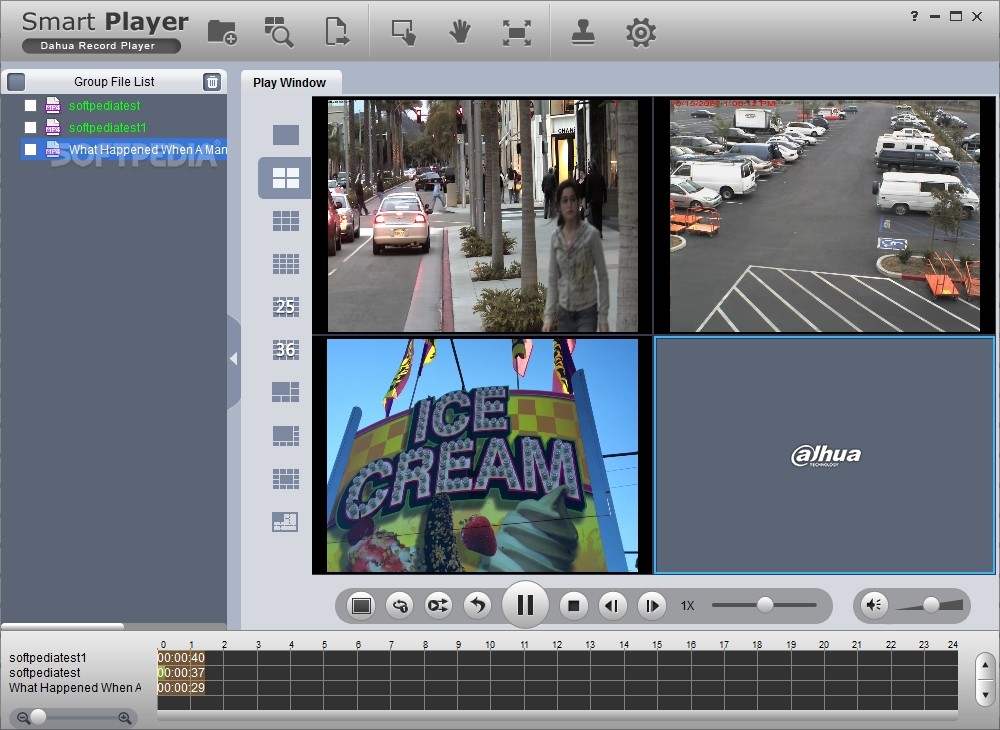
The recorded video begins to playback starting at that point in time. On the playback screen, I can select different screen views.
There are also video player controls that let me play the video in forward and reverse using normal and faster playback speeds. I can also pause the video.
To set-up motion detection recording, select record setup from the main menu.
These DVRs support traditional motion recording and also intensive motion detection recording.
On the motion recording screen, the recording resolution, frames per second, and compression quality can be individually be set for each camera. If any of the security cameras have an audio microphone associated with it, audio recording is enabled here.
Also on this screen is where the pre and post recording times are set.
Intensive motion recording allows you to setup separate settings for continuous and motion detection recording. Intensive motion recording is typically setup to record at a lower frame rate during continuous recording and maximum frame rate when motion is detected. This helps conserve hard drive space.
To setup motion detection areas for each security camera, select system setup from the main menu.
Then select motion sensor from the camera menu.
On the motion sensor screen, I select edit area for the camera that I want to configure. By default, the entire screen is selected for motion detection.
Using the mouse, I right click then de-select all to clear the motion area.
Next, I left click on the mouse and drag to select the motion detection zone that I want to setup.
Next, I right click to access the menu, then select sensitivity.
On this screen, you can configure different sensitivity levels for day and night times.
You can right click to bring up the menu to select a different camera.
This camera is not detecting motion so I am going to set the sensitivity higher.
The blue squares on the screen indicate motion is detected. This is helpful when setting the sensitivity levels.
When I am done. I right click and select save and exit.
To search and playback motion detection recordings, select search from the main menu.
The timeline on the search screen indicates times of motion detected recording with the blue bars.
Using the timeline scrubber, I can select a time then click playback.
The recorded video begins to playback starting at that point in time. On the playback screen, I can select different screen views.
There are also video player controls that let me play the video in forward and reverse using normal and faster playback speeds. I can also pause the video.